09. Create an IAM User
Create an IAM User
Here, you'll create an IAM user that you will use to access your Redshift cluster.
- Navigate to the IAM console. In the left navigation pane, choose Users, and click on the Add User button. It will launch a new wizard.
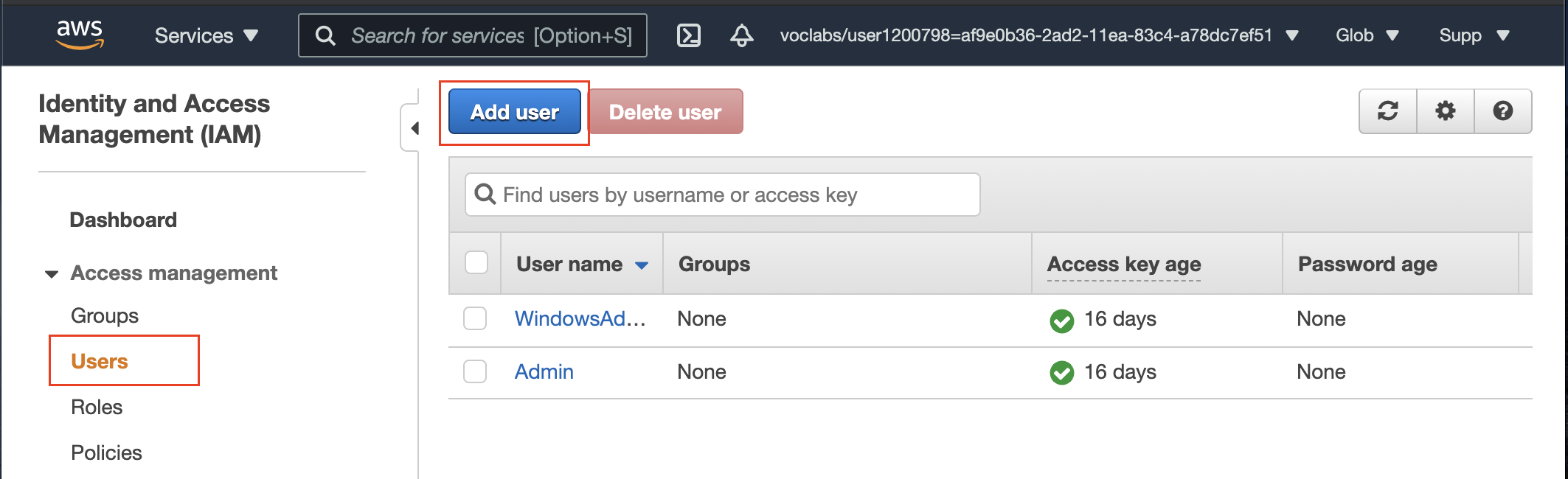
IAM Users dashboard
- Set user details
Enter a name for your user , say airflow_redshift_user, and choose Programmatic access. Then click on the Next: Permissions button.
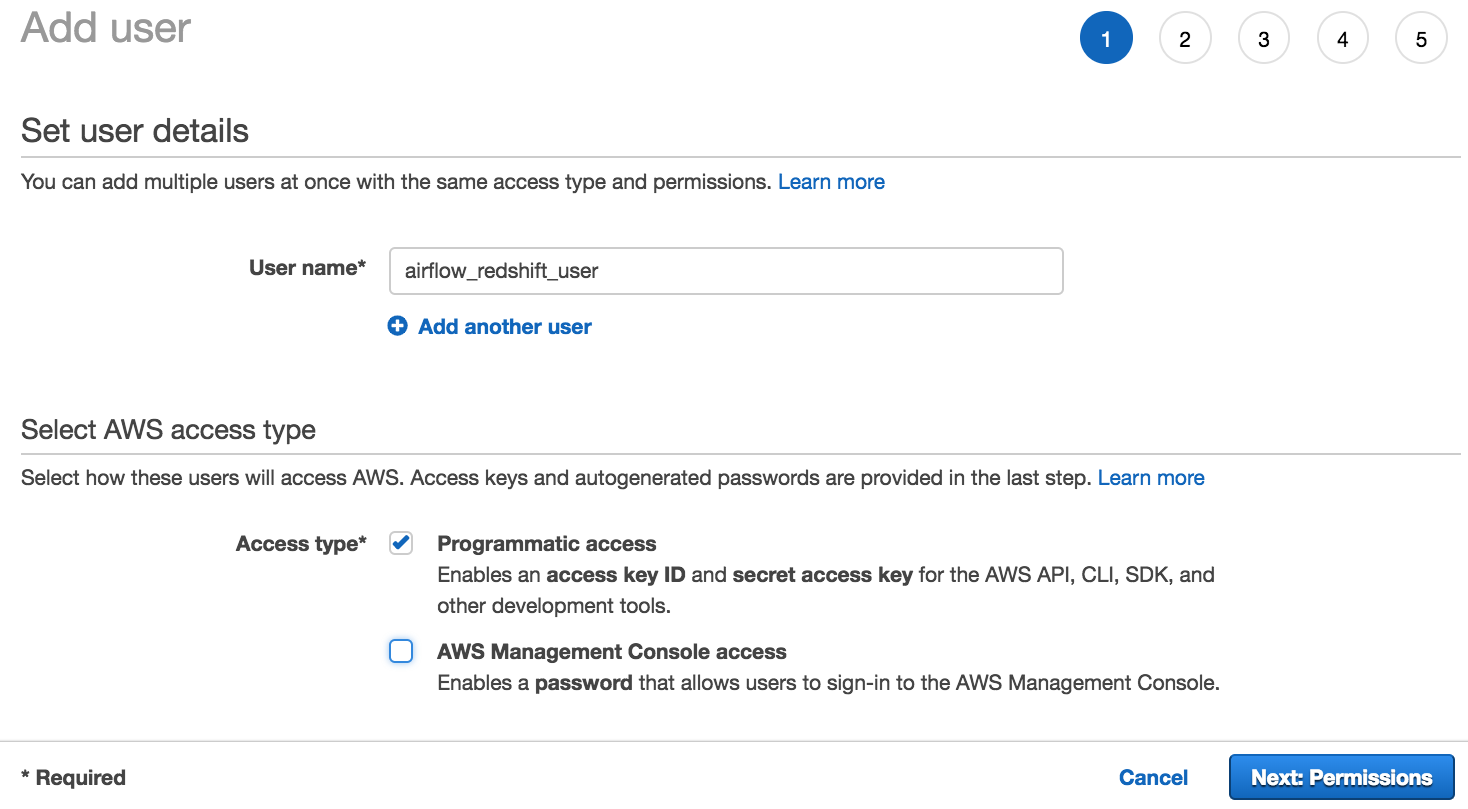
Create IAM users → Set user details
- Set permissions
Choose Attach existing policies directly option.
Search for redshift and select AmazonRedshiftFullAccess.
Then, search for S3 and select AmazonS3ReadOnlyAccess.
After selecting both policies, choose Next: Tags. Skip this page and choose Next: Review.
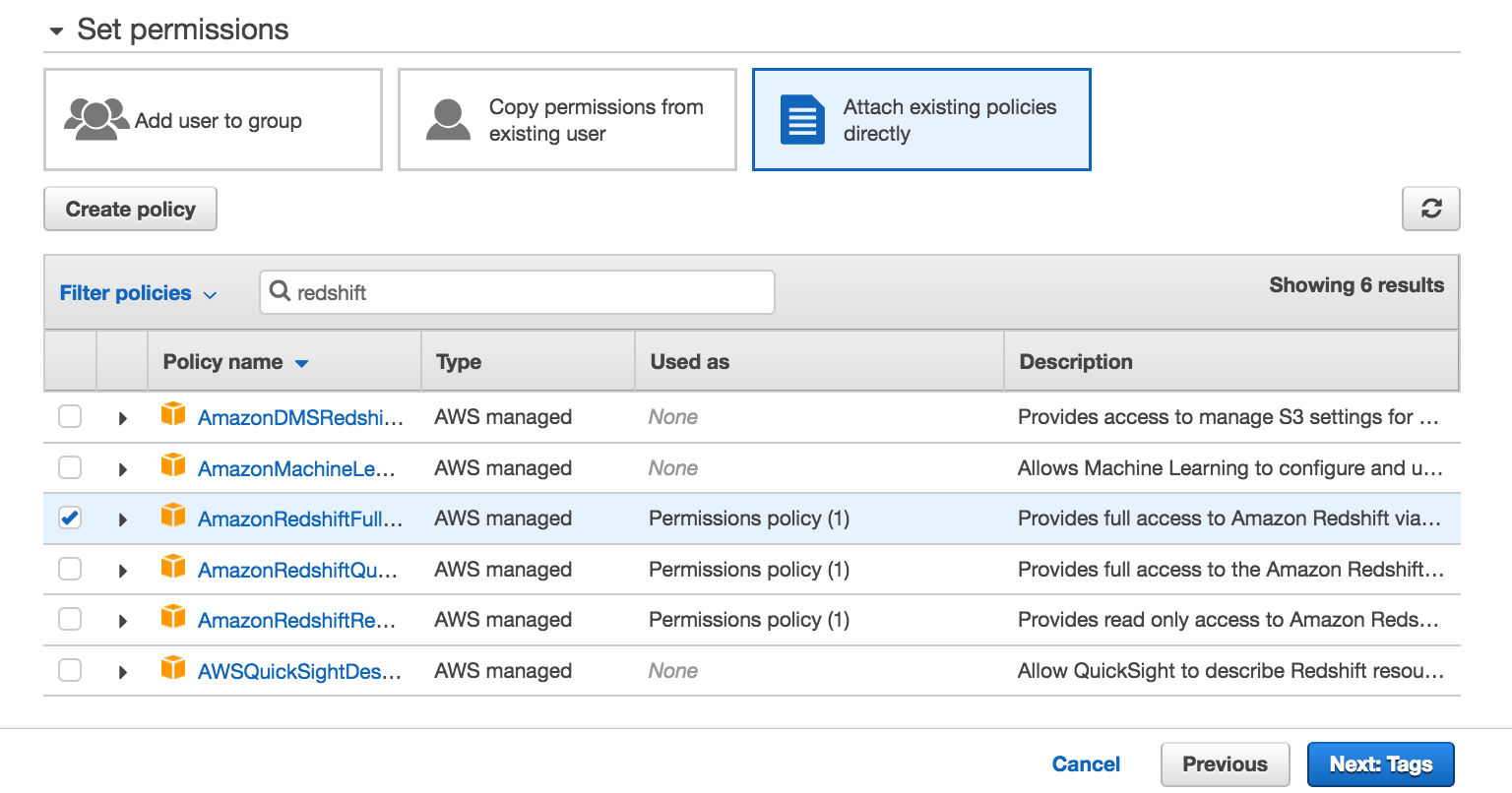
Create IAM user → Set permissions → Select AmazonRedshiftFullAccess
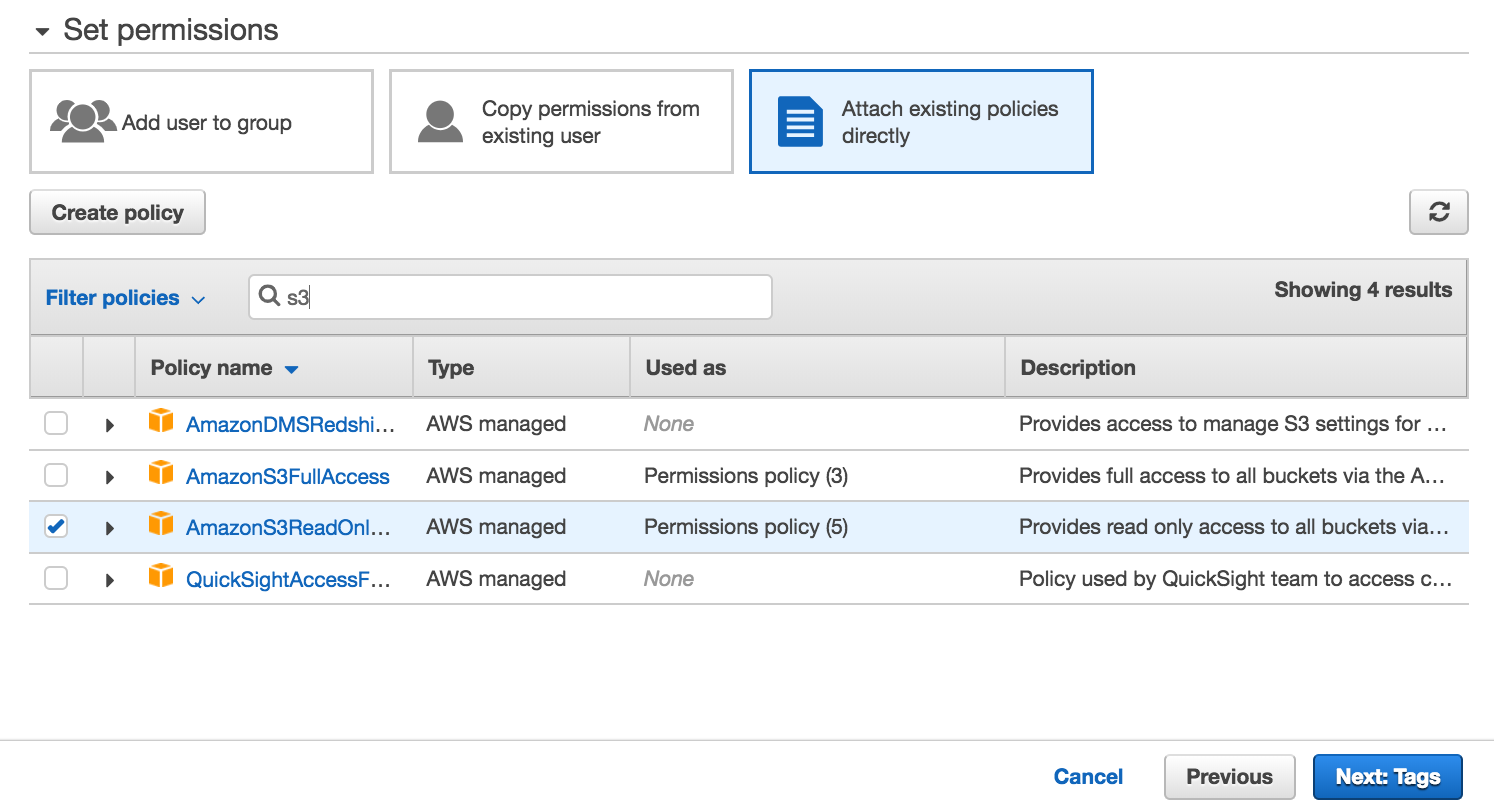
Create IAM user → Set permissions → Select * AmazonS3ReadOnlyAccess*
- Review your choices and finally click on the Create user button.
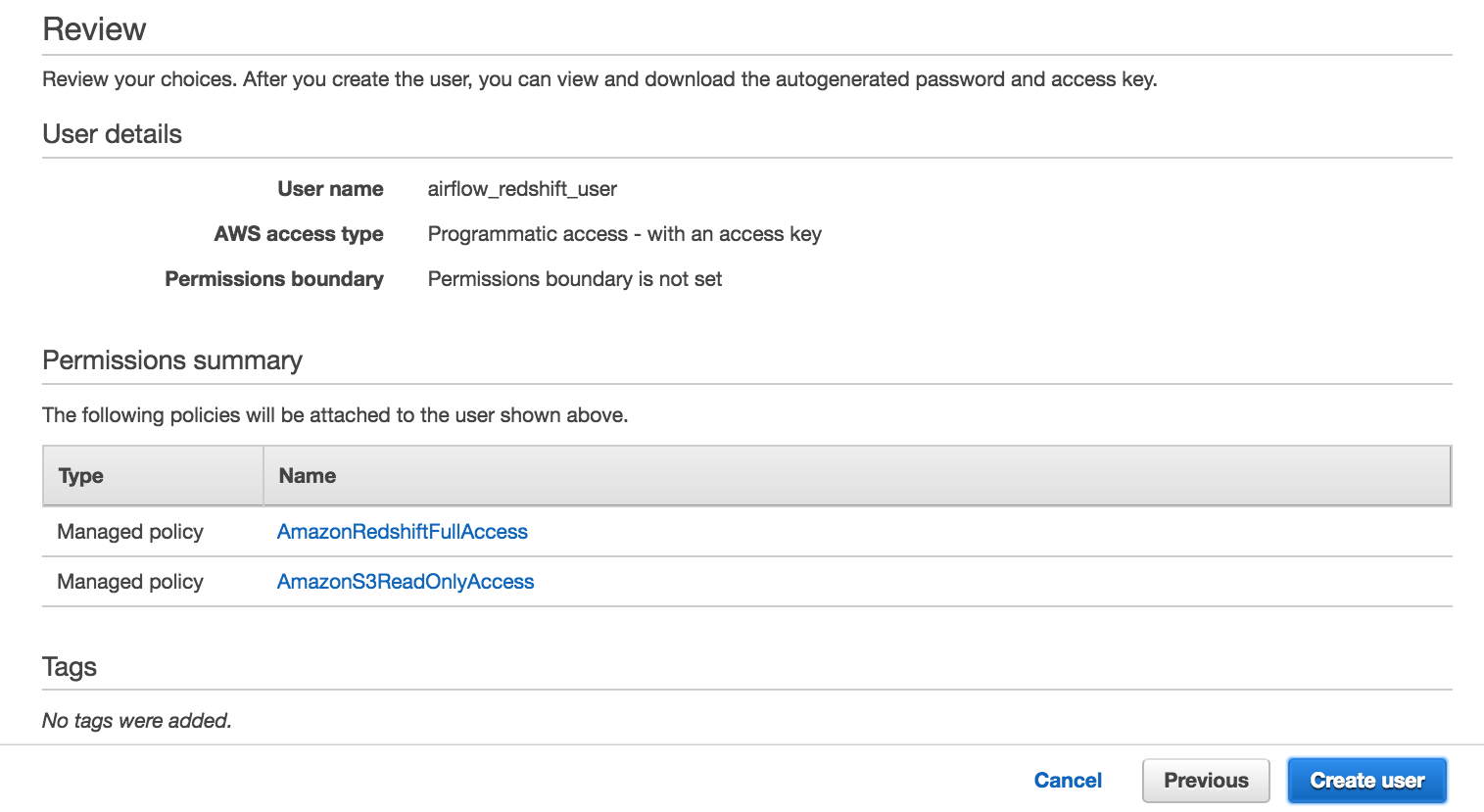
Review the new IAM user details
- Save your credentials!
This is the only time you can view or download these credentials on AWS. Choose Download .csv to download these credentials and then save this file to a safe location. You'll need to copy and paste this Access key ID and Secret access key in the next step.
We strongly advise you to keep this Access key ID and Secret access key closely guarded, including not putting them in a GitHub public repo, etc.
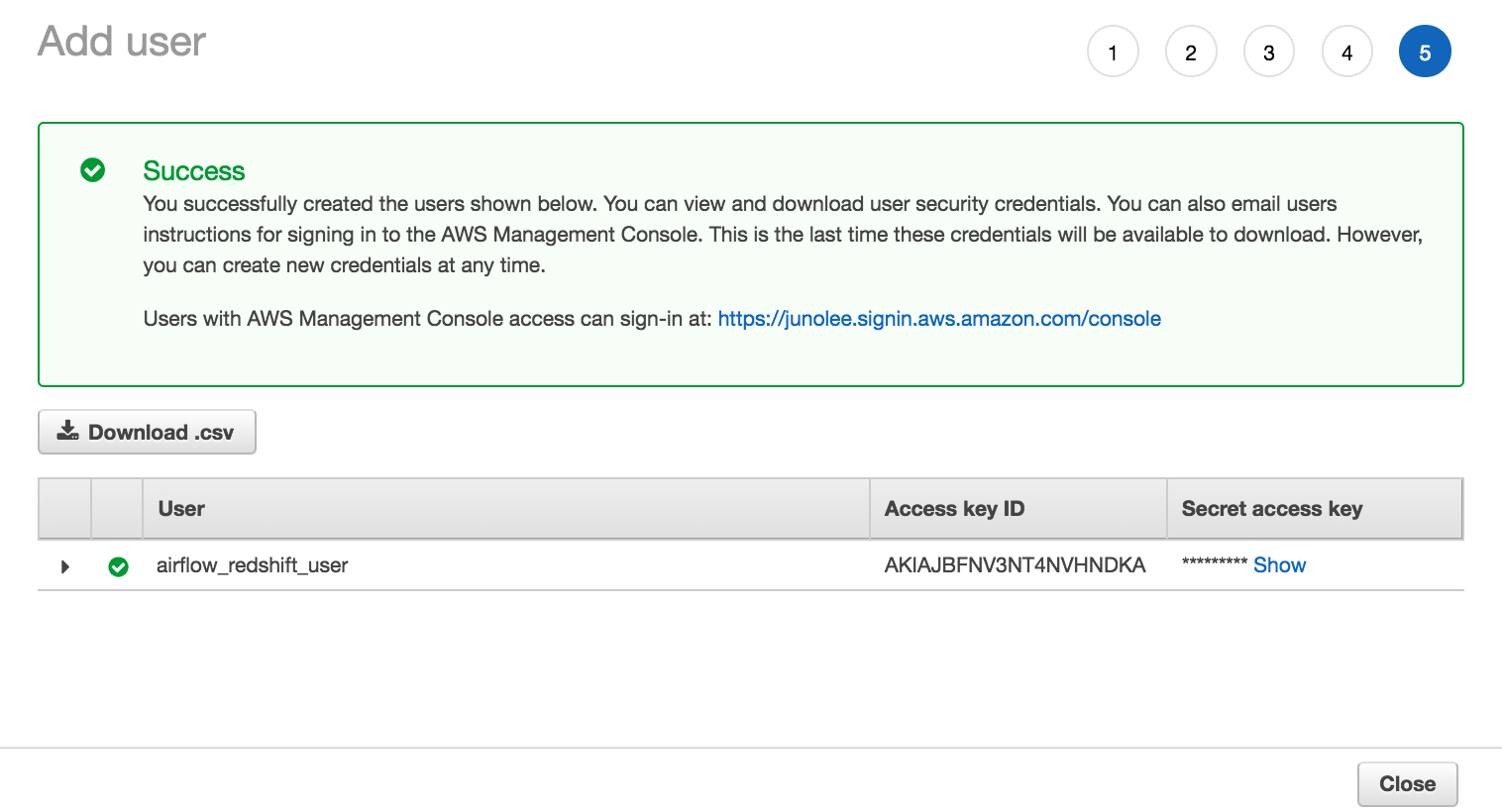
User created successfully.
Copy the Access key Is and Secret access key.